
Upgrade or Downgrade Your Plan
You can change your plan at any time from the Billing section of your workspace. This article explains how upgrades and downgrades work, and what to do if you see a message saying a plan change is not possible.
How to change your plan
-
Open the Billing section of your workspace. You will see all five plans side by side, with your current plan marked Your Plan.
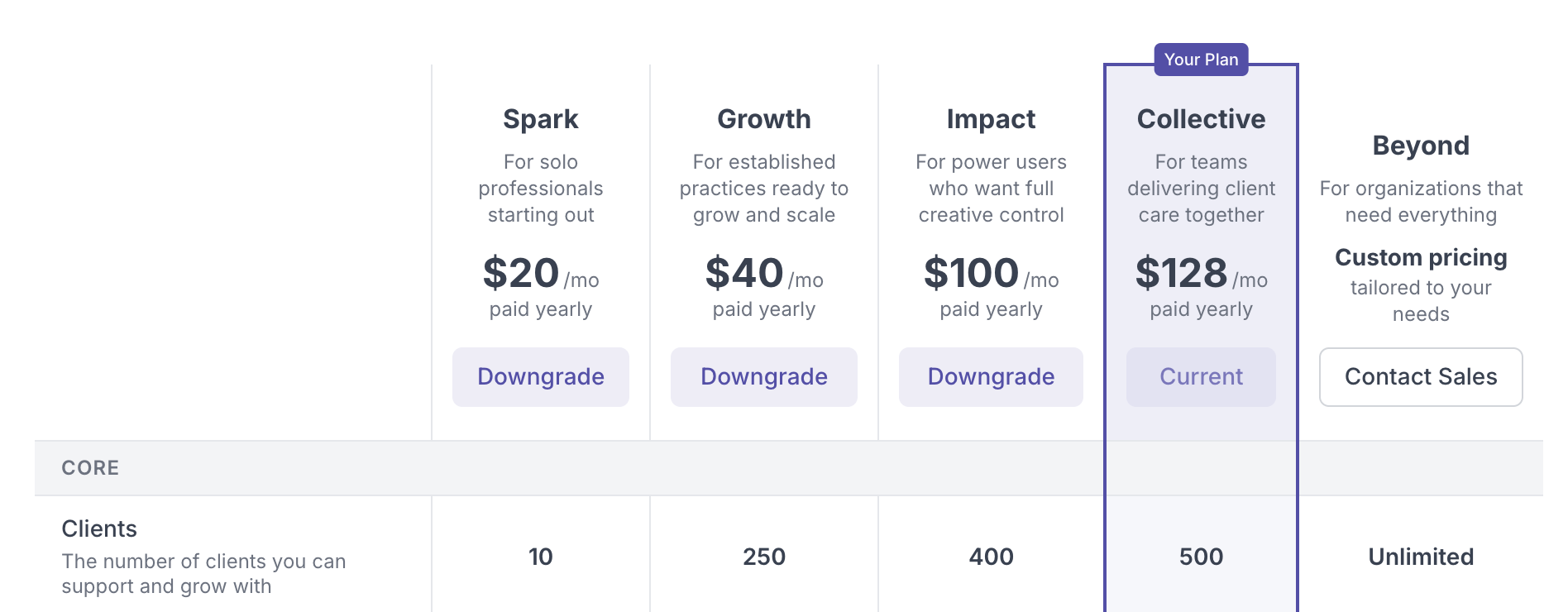
- Use the Monthly and Yearly toggle to choose how you want to be billed.
- Select Upgrade on the plan you want. For the Beyond plan, choose Contact Sales instead, since it is custom priced.
Upgrading
Upgrading to a higher plan takes effect immediately. As soon as you upgrade, your new client limit, extra professional seats, and any new features become available right away, and your billing adjusts to the new plan.
Downgrading
When you move to a lower plan, the change takes effect at the start of your next billing cycle, not right away. You stay on your current plan, with all of its features and limits, until the end of the period you have already paid for. The lower plan then begins at your next renewal.
Your current usage also needs to fit within the limits of the lower plan. Before a downgrade can go through, Quenza checks things like your number of clients, your number of professionals, and any features you are using that have limits. If everything already fits, the downgrade is scheduled for your next cycle. If something is over the new plan's limit, you will be asked to reduce it first.
Plan change not possible
If your current usage is above the limits of the plan you are switching to, you will see a message titled Plan change not possible. It lists exactly what is over the limit, for example your number of professionals or webhook endpoints.
To continue, reduce each listed item to fit within the new plan, then try the change again. Reducing usage only frees up the slots. It does not delete any client data. Depending on what is over the limit, that might mean removing clients, removing a professional, or removing a webhook endpoint.
What happens to your features and data
Your data is never deleted when you change plans. When you downgrade, features that are not part of the lower plan simply stop being available while you are on it. For example, moving to a plan without Groups pauses group activities, and calendar integrations are switched off. If you upgrade again later, those features become available once more.