
How to Add Attachments in Chat
You can easily share files with clients directly in your chat conversations. This allows you to exchange documents, images, worksheets, and other materials in real time.
Adding an Attachment to a Chat Message
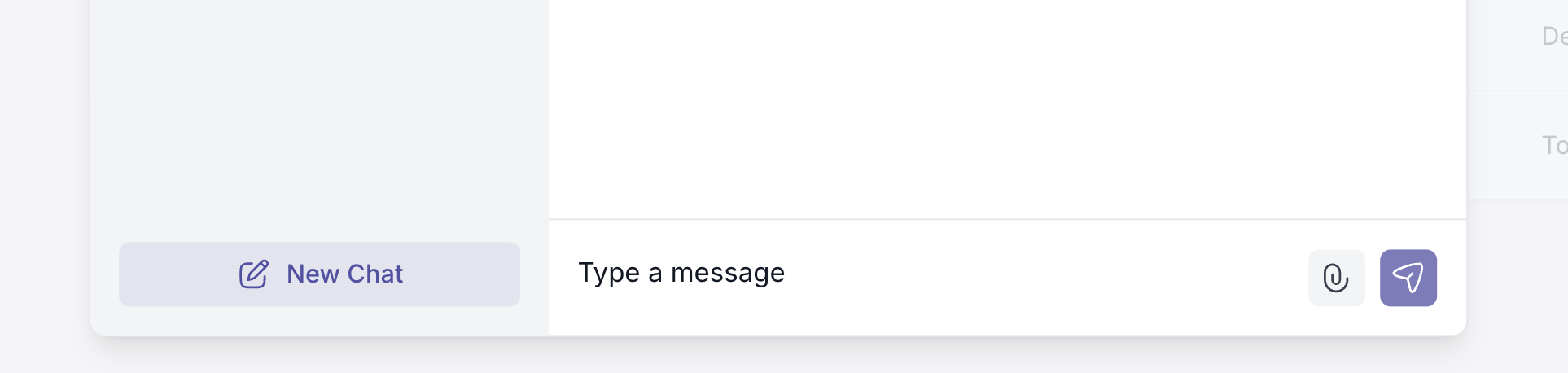
- Open a chat conversation.
- At the bottom of the chat window, next to the message input field, click the paperclip icon.
- Your file browser will open (on desktop or mobile).
- Select one or multiple files.
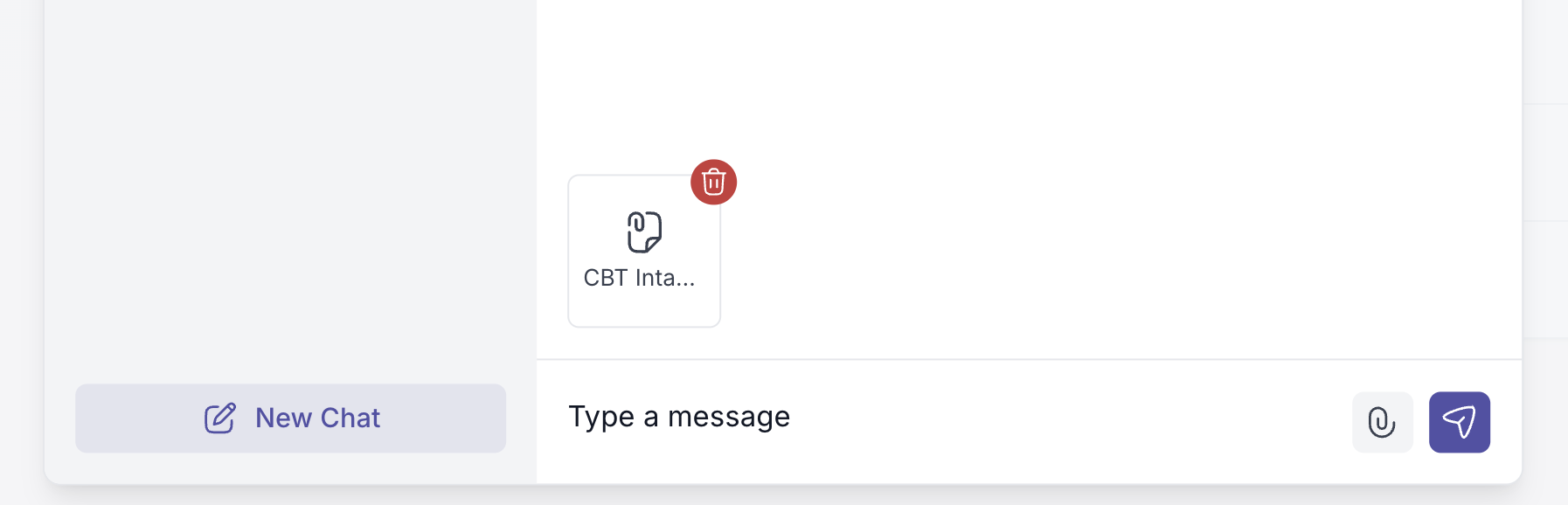
- The selected files will appear directly above the message input field.
- Click Send to share them in the conversation.
Your files will be sent as part of the chat message.
Supported File Types
You can attach various types of files, including:
- PDF documents
- Images (JPG, PNG, etc.)
- Word documents
- Spreadsheets
- Presentations
- Other common file types
Attaching Multiple Files
You can select multiple files at once.
All selected files will appear in a preview area above the message input field before sending.
From there, you can:
- Remove individual files before sending
- Or proceed by clicking Send
Image Attachments
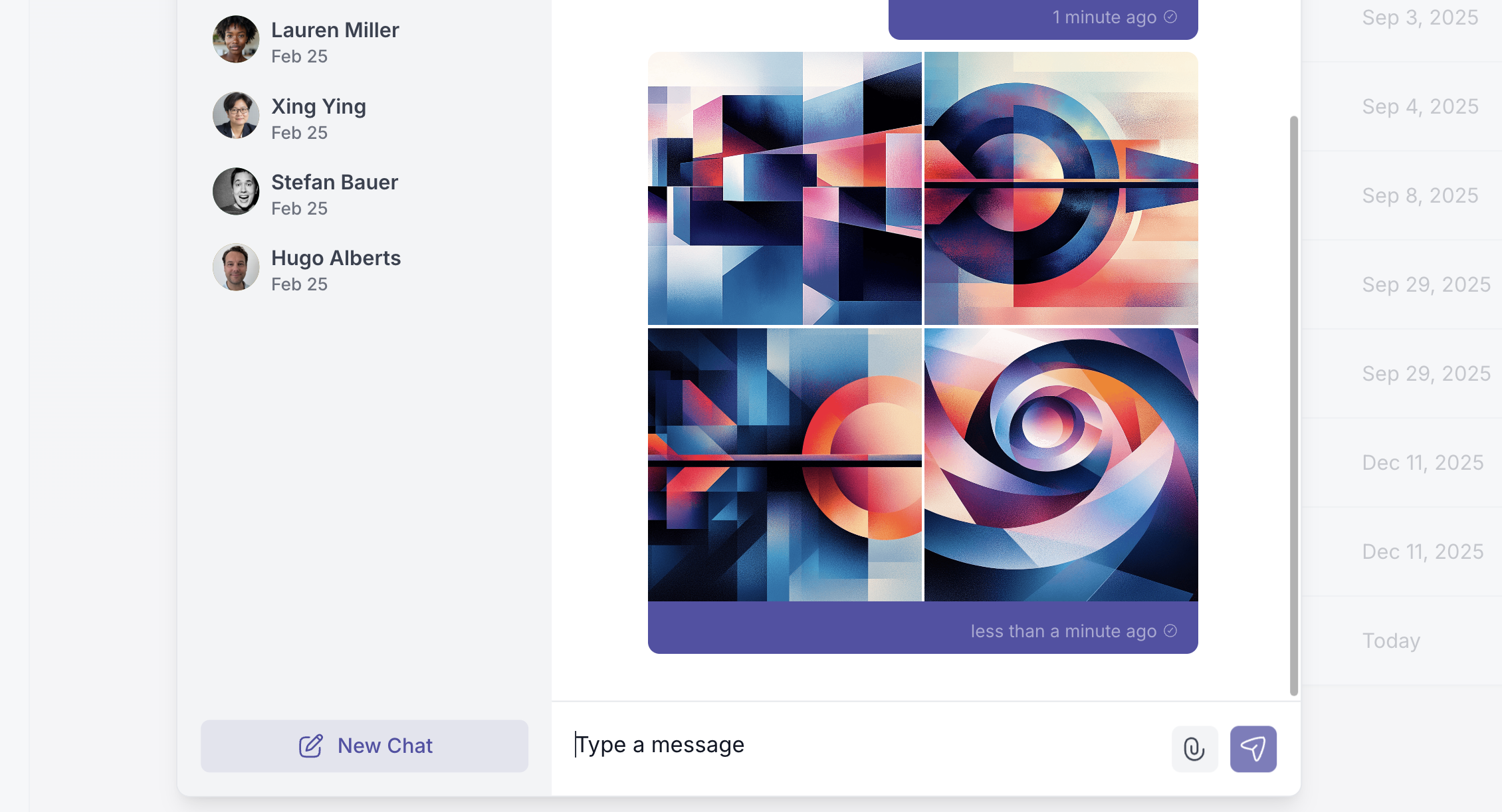
When you attach multiple images:
- They are automatically bundled together
- They appear as a gallery within the chat
If a user clicks on an image, it opens in an expanded view (modal) for a closer look.