
Create and Use Email Templates
When you assign an activity or program, Quenza emails your client to let them know. Email templates let you save that subject and message once and reuse it, so you do not rewrite the same note every time you send.
Every email type starts with a built-in Quenza default template, which is used until you choose another.
Use a template when you send
- Open an activity or program and click Send, choose your recipients, and continue to the Notifications step.
-
Make sure Send an email is on. Under Customize Email, click Use a template and pick the one you want.
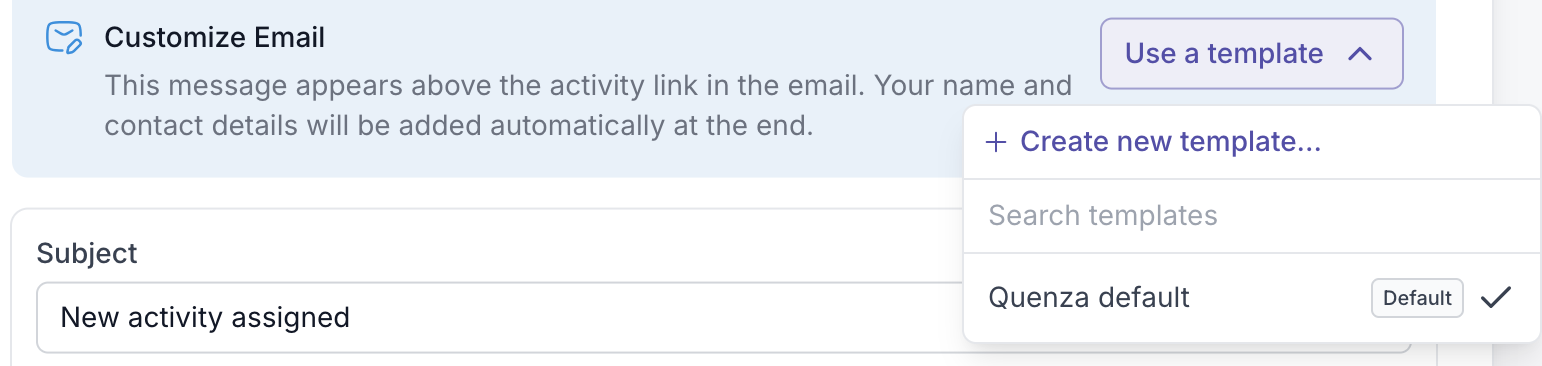
- The subject and message fill in automatically. Adjust them if you like, then click Send.
Your name and contact details are added to the end of the email automatically, and the link to the activity appears above your message.
Create a template
You can save a new template without leaving the send dialog:
- In the Use a template dropdown, click Create new template.
- Give the template a Name, write your Subject (leave it empty to use the default subject), and compose your Message.
- Click Save template. It is now available to pick the next time you send.

Two things make templates flexible:
- Variables. Use the variable button in the message toolbar to drop in details like the client's first name or the activity title. Quenza fills these in for each client, so one template stays personal.
- Languages. Use the + next to English to add another language, so clients are emailed in the language that suits them. Note that upon sending and activity or program, the language of template is automatically chosen based on the client's language settings.
Set a default template for an activity or program
Each activity and program can have its own default template, which prefills the send dialog so you do not have to pick one every time.
- Open the activity or program and go to its Settings tab.
-
In the Email section, choose a Default email template.

If you do not set one, Quenza uses your workspace's default template for that type. You can still pick a different template or edit the message each time you send.
Manage your workspace's templates
The templates are workspace wide usable and can be managed in one place:
- Go to Workspace, then Customization, and open Email templates.
- Templates are grouped by what they are sent with: Send activity and Send program. Each starts with the Quenza default.
- Click Add template next to a type to create one for the whole workspace.

Result
You and your team can send activities and programs with a consistent, personal message in a couple of clicks, instead of writing each email from scratch.