
Send an Activity to a Client
When you are ready to send a client an activity from your library, you get full control over when it lands, whether they are reminded, and who sees the results. Here is the whole flow.
One thing first: the client needs to be Active. You cannot interact with an archived client, so restore them first if needed.
- Open the client's profile and select the Activities tab.
- Click Send activity.

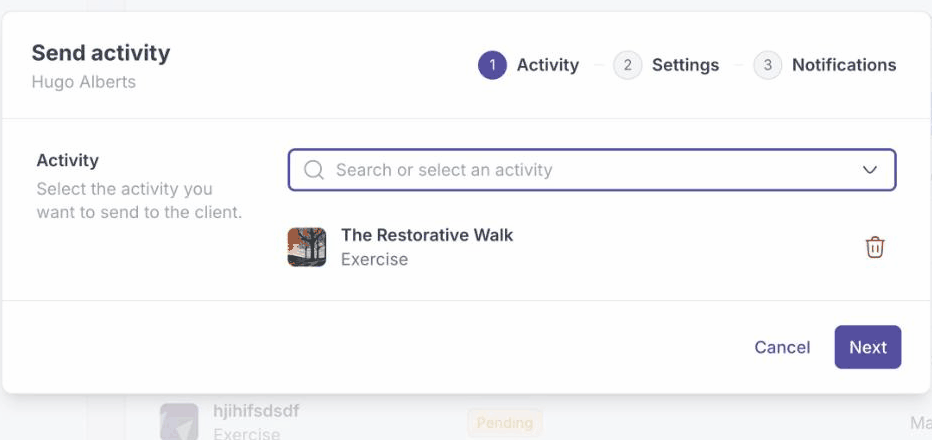
- Search for and select the activity you want to send, then click Next.
- Choose your delivery settings, then click Next:
- When the activity becomes available to the client (for example, Now).
- Send reminder if you want the client nudged about it.
- Expire after a date, if the activity should close. Expired activities cannot be filled out.
- Results: who can see the responses, the client, the professional, or both.
- Enable client comments to let the client comment on the completed activity.
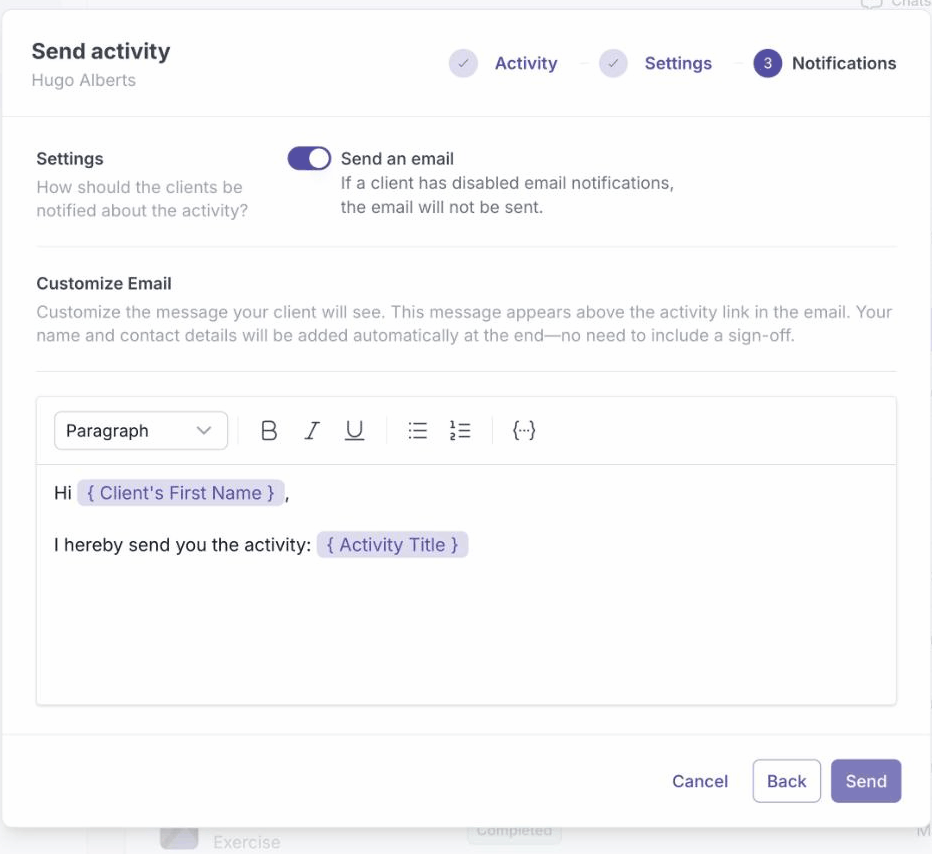
- Decide how the client is notified. Leave Send an email on to email them, edit the message if you like, then click Send.
The activity appears in the client's Activities list and on their timeline, and the client is notified. Until they open it, the status shows Pending.
Prefer to start from your library? Open the Activities library, find the activity, open its ... menu, and choose to send it. The same dialog opens, where you pick the client and set the delivery and notification options.