
Send a Program to a Client or Group
Sending a multi-step program works just like sending a single activity, with the same control over timing and notifications. You can send to one client or to a whole group.
- Open the client's profile and select the Programs tab. To send to a group, open the group and select its Programs tab instead.
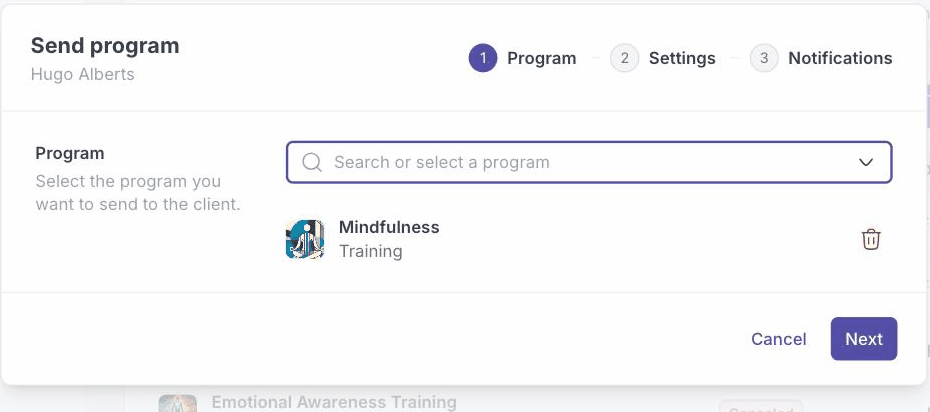
- Click Send program.
- Search for and select the program you want to send, then click Next.
- Choose your delivery settings, then click Next:
- When the first step becomes available (for example, Now).
- Results: who can see the responses, the client, the professional, or both.
- Client Activity View: show all upcoming activities so clients see the whole program, with future steps greyed out until they unlock.
- Enable client comments to let the client comment on completed steps.
- Decide how the client is notified. Leave Send an email on to email them, edit the message if you like, then click Send.
The program appears in the client's Programs list. The first step unlocks according to your delivery setting, and each later step unlocks as the client finishes the one before it.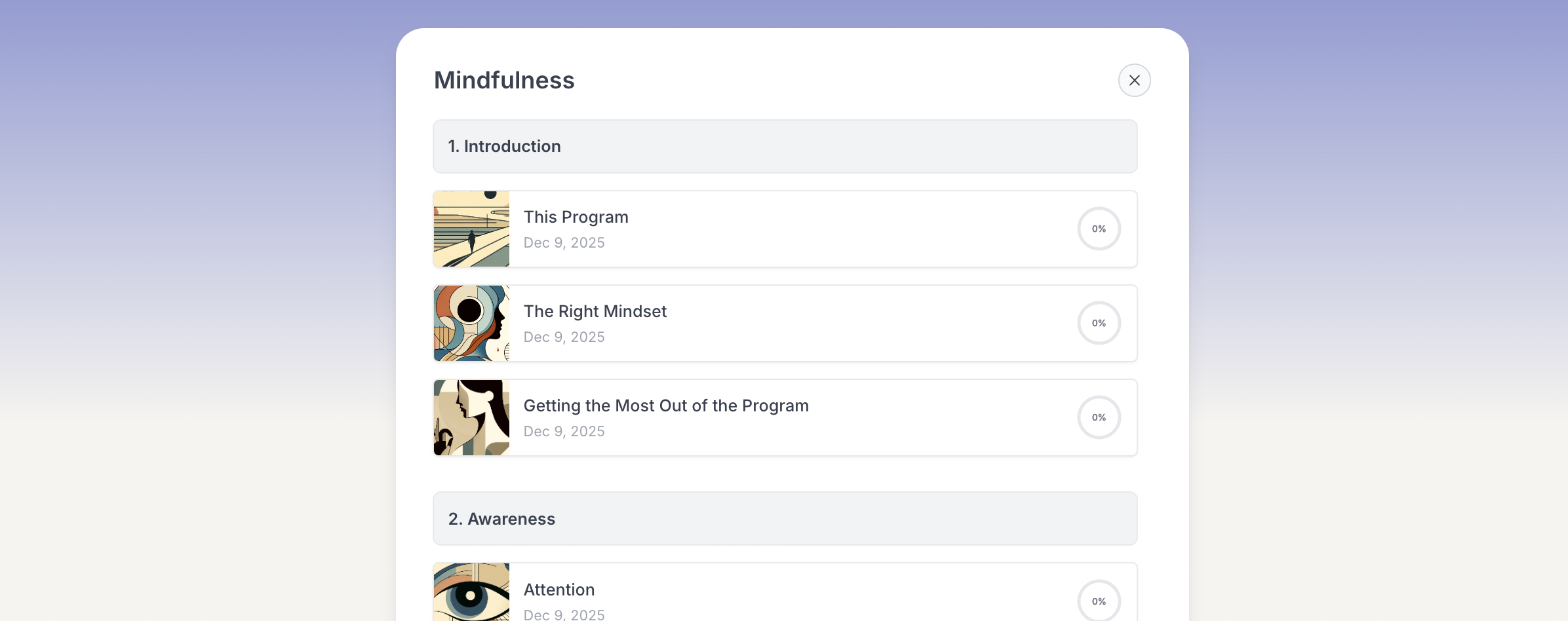
Sending to a group is identical: open the group, select its Programs tab, click Send program, and complete the same dialog.